
 Українська
 Español
 Italiano
 Deutsch
 Français
 Português (Brasil)
Most budgets don’t fail in a normal month. They fail when the car insurance renews, when your pay arrives every other Friday instead of on the 1st, or when one dinner out turns a line red and the whole plan feels broken.
This guide sets up a budget in MoneyMatter, then goes through those situations one at a time, with numbers.
Set up your budget
- In the sidebar, open Planning → Budget and click Start budgeting.
- Under Resets, choose how often a new period starts: Monthly, Semi-monthly, Biweekly, Weekly or Custom, such as every 10 days. Pick the schedule your income follows, because you can’t change it later.
- Under Accounts, keep the accounts you spend from, such as your current account and credit card, and remove your savings.
- Leave Smart pre-fill on and click Next.
Smart pre-fill looks at the last 3 full calendar months on those accounts and suggests lines with amounts. If you averaged 342 a month on groceries, your Groceries line starts at 350. A few optional questions let you choose how detailed the budget is and which spending you want to watch closely. With no history, you get a starter set of lines at 0 to fill in.
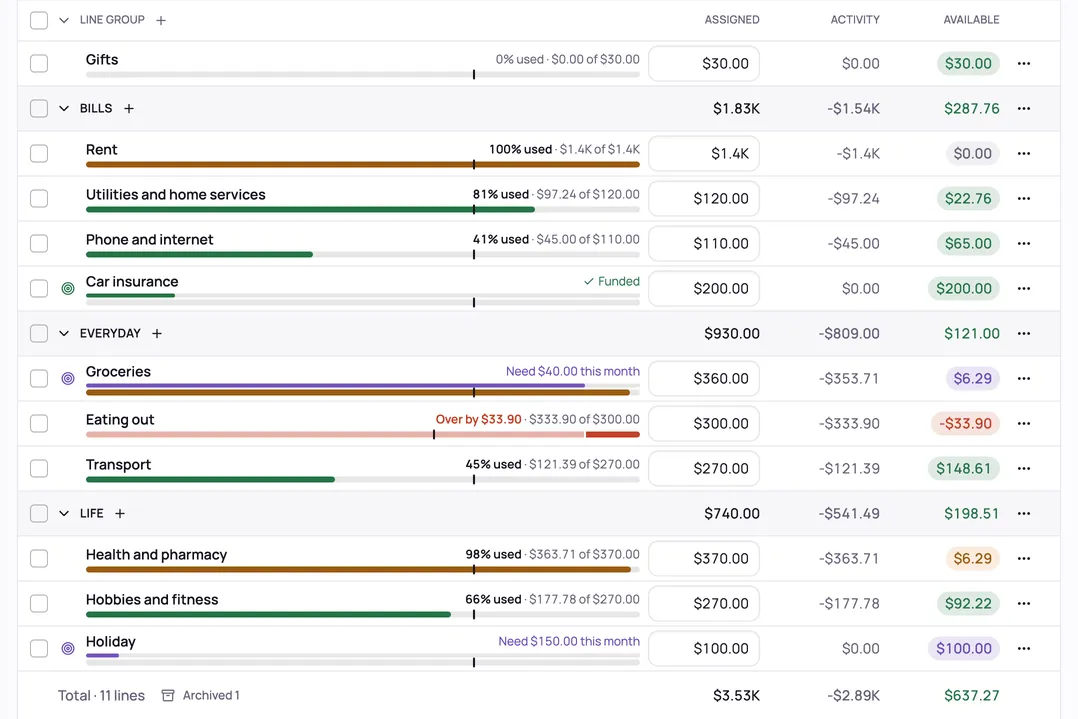
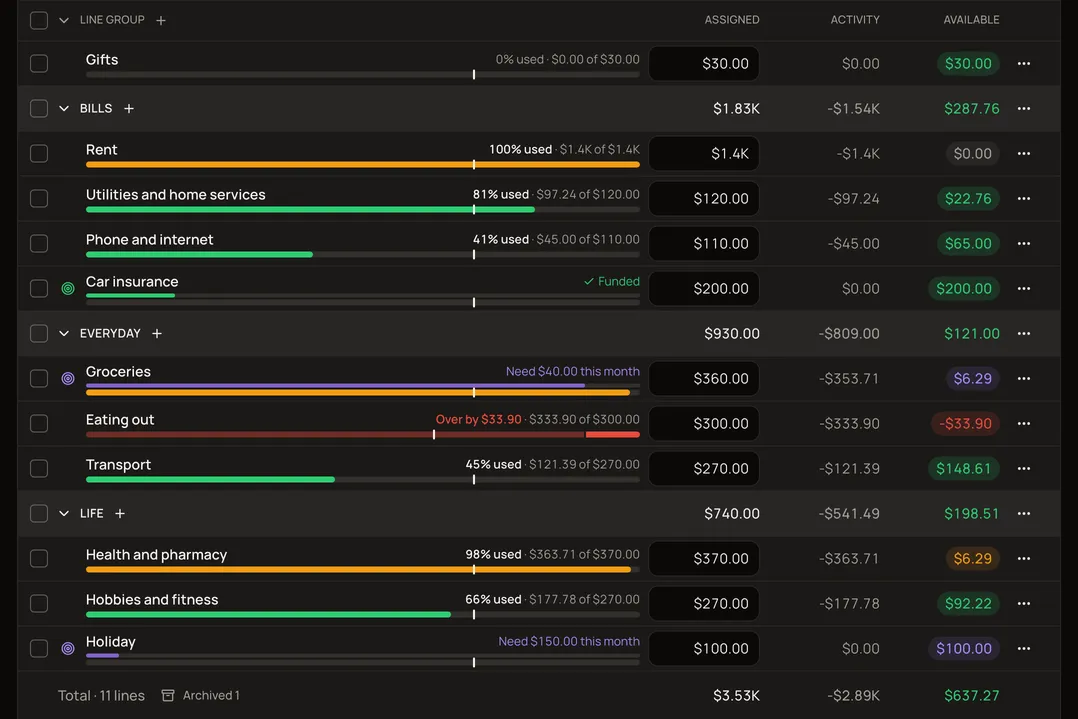
How to read a line
Each line covers one or more categories and shows three amounts for the period:
- Assigned: what you plan to spend.
- Activity: what you spent. Spending shows as a negative amount, and a refund in the same category adds back to it.
- Available: what’s left, including anything carried over from the last period. Green means money is left, red means the line is overspent.
Going over a line turns it red and blocks nothing.
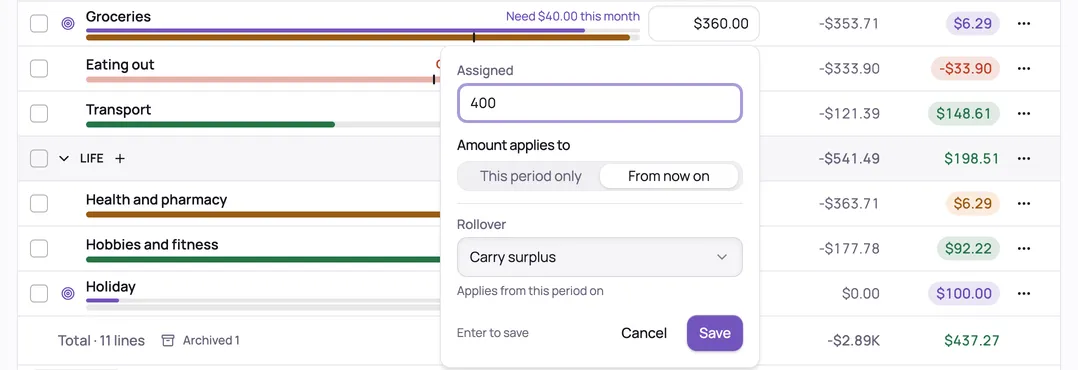
Click an Assigned amount to change it. From now on sets the line’s usual amount, which repeats every period until you change it. This period only is a one-off. Because usual amounts repeat by themselves, a period that goes to plan needs no work.
Lines sit in groups such as Bills, Everyday and Life. A group is a heading with its own totals, and it doesn’t change any amounts.
You’re paid every two weeks
A calendar month rarely matches a biweekly paycheck: most months have two paydays, and a few have three. Choose Biweekly under Resets and set Starts on to your last payday. Each period then runs from one payday to the next, so each paycheck funds one period.
Other pay schedules:
- Paid on the 1st and the 16th? Choose Semi-monthly. It has two periods a month, about half a month apart.
- Paid monthly, but on the 25th? Choose Monthly and start on your last payday. Each period then runs from the 25th to the 24th.
Car insurance once a year
A 1,200 yearly payment wrecks the month it lands in, unless you put money aside in smaller amounts first. That’s a sinking fund, and in MoneyMatter it’s a goal on a line.
- Add a Car insurance line with its category.
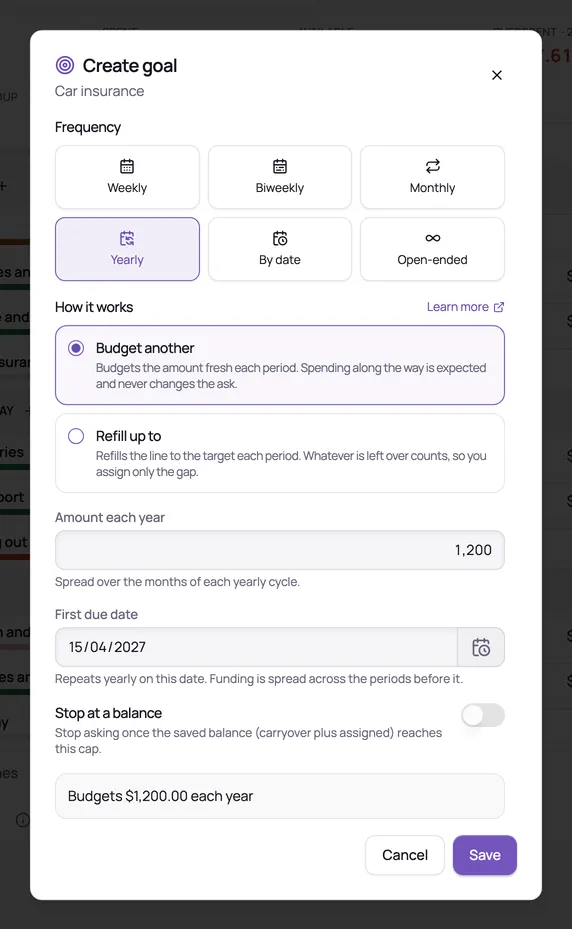
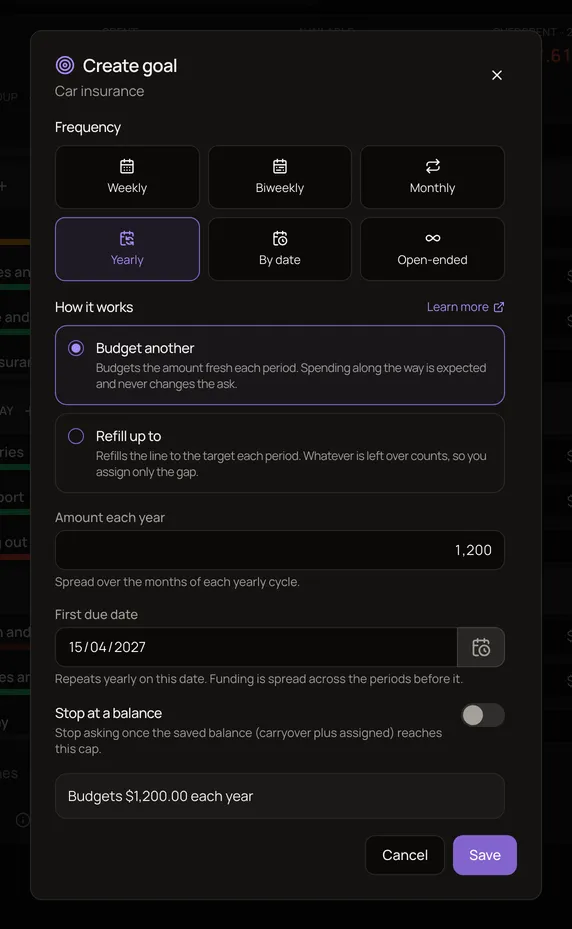
- Hover over the line and click the dashed target button in front of its name (Create goal).
- Under Frequency, choose Yearly and set the First due date.
- Under How it works, keep Budget another and enter 1,200.
MoneyMatter spreads the 1,200 over the periods before the due date. With the due date a year away, the line asks for about 100 a month and shows what it needs under its name. Open the line in the side panel to see the Funding plan: how much to assign in each period until the due date. Click Budget X on the goal to assign what it asks for.
Keep the default Carry surplus rollover, so the money you set aside stays in the line until the bill arrives.
The same goal covers any bill that comes once a year: a domain name, a gym membership or your TV licence.
A holiday in August
For a total you need by a certain day, choose By date. Its default, Reach a balance, tracks the money in the line itself. Say the trip costs 1,500 and it’s 6 months away: the goal asks for about 250 a month.
If you pay the hotel deposit from that line early, progress drops, and the goal raises what it asks for right away, so you still get there by the due date.
For something that comes back every year, such as Christmas presents, choose By date with Budget another and turn on Repeat every 1 year. A new cycle starts after each due date.
When the trip itself starts, track it in a spending tracker next to your budget. A tracker has its own limit and dates, and you can share it with whoever travels with you.
An emergency fund with no deadline
Choose Open-ended. It only offers Reach a balance, and the line shows how far along it is, such as 600 of 3,000 (20%).
Prefer a fixed amount each month? Choose Monthly with Budget another, enter 100, and turn on Stop at a balance at 3,000. The goal asks for 100 every month and stops once the line holds 3,000.
Groceries every Friday
If you shop once a week, a monthly amount is wrong half the time. Give the Groceries line a Weekly goal of 50 that Repeats on Friday. The goal counts the Fridays in each period: it asks for 250 in a month with five Fridays, and 200 in a month with four.
A weekly goal that still needs money says how far you’re covered, for example “Funded through the 14th”.
A month with guests
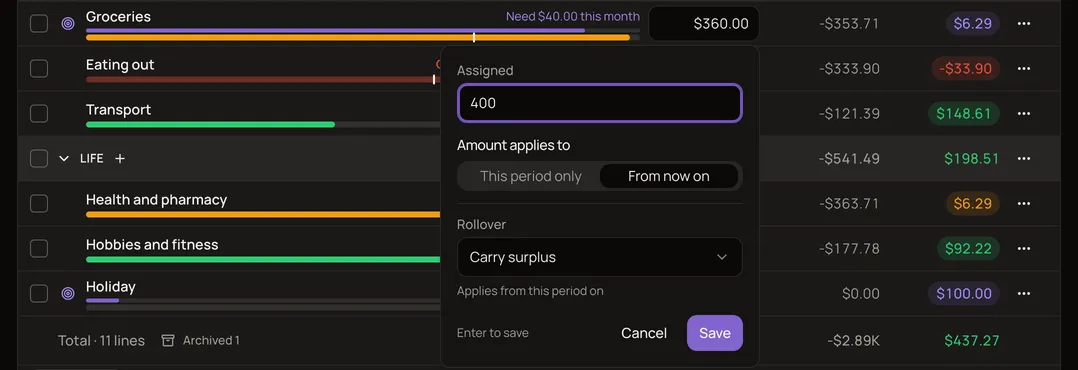
Your parents stay with you in May, so groceries will cost more. Click the Groceries line’s Assigned amount, enter 500 and choose This period only. The line shows an override badge in May, and June goes back to the usual 400.
Changed your mind? Open the same window and click Use baseline to remove the one-off.
You overspent a line
Eating out went 40 over. Its Available turns red, and you have two ways to deal with it.
Cover it from another line. Open the ⋯ menu at the end of the overspent line and choose Move money. MoneyMatter picks the line with the most to give as From. Click Cover the overspend, then Move X. Both lines’ Assigned amounts change for this period only, and Undo in the message puts them back.
Or let it follow you into next period. That depends on the line’s rollover rule. Here’s what a Groceries line with 400 assigned every month starts April with:
| March ended with | Carry surplus (default) | Carry surplus and deficit | Start fresh each period |
|---|---|---|---|
| 50 left | 450 | 450 | 400 |
| 50 overspent | 400 | 350 | 400 |
With the default Carry surplus, leftovers move on and overspending doesn’t, so April starts clean. Choose Carry surplus and deficit for a line where you want overspending to come out of the next period. You can set a rule for the whole budget in Budget settings and give any line its own.
Bills still to come this period
The side panel next to the grid has a Scheduled section. It lists the recurring payments, such as subscriptions and bills, and the planned transactions still to come this period.
It also checks whether each line’s Available can pay for what’s still scheduled in its categories, in date order. A line that can’t is marked Not covered, with how much it’s short. Click Assign X to raise this period’s Assigned by that amount. In the period overview, the Scheduled title says how many lines are short, for example “1 not covered”.
Irregular or freelance income: give every dollar a job
When your income changes from month to month, budget only the money you already have. Turn on Fund from a pool when you create the budget, or later in Budget settings. Your income then goes into Ready to assign instead of straight to your lines, and you decide which lines get it.
When the pool starts, the money already in your budget’s accounts goes into it, so your first job is to give that money a job. After that:
- Green means money is waiting for a job, 0 means every bit has one, and red says “Over-assigned by X”.
- Click Assign for suggestions: Fund your goals, Cover overspending, Repeat last month, or Assign to one line. You check the amounts before anything is saved.
- Turn on Keep ready to assign at 0 in Budget settings for zero-based budgeting. Until everything is assigned, the header says “Assign the rest to keep ready to assign at 0”. It nudges and never blocks.
- A slow month left you over-assigned? Click Fix this and choose Take back from leftovers or Take from one line.
A good month can pay for the next one. Open the next period and assign the leftover money there. It’s set aside as Committed to later periods, so it comes out of this month’s Ready to assign and can’t be handed out twice. You can assign up to 12 periods ahead, and after a few good months you’re living on last month’s income.
The 50/30/20 rule
The 50/30/20 rule splits take-home pay into 50% needs, 30% wants and 20% savings. To follow it, create three groups called Needs, Wants and Savings, and move your lines into them: click Options → Manage layout and drag each line to its group.
Each group row shows its own Assigned total, so you can compare it with your pay in a glance. MoneyMatter doesn’t work out the percentages for you. Lines in Savings can carry the goals from above, such as the emergency fund or the holiday.
You want to split one line into two
Your Food line mixes the supermarket with takeaways, and you want to see them apart. Open the ⋯ menu on the Food line and choose Archive line. Its categories are free right away, so you can add separate Groceries and Eating out lines in the same period.
Past periods keep the Food line with an archived badge, so your history stays as it was. Use Delete line only for a line that was a mistake.
Spending that isn’t in any line
When you spend in a category no line covers, a bar appears below the grid: “Spending outside your lines”, with the amount and the number of categories. Treat it as a to-do list. Add each category to a line, add a new line for it, or leave it out of the budget on purpose.
A fresh start after a messy few months
A new job, a new year, or a budget that drifted: click Options → Reset rollover on the period you want to start clean. Every line starts that period with only what you assign.
Say Groceries has 400 a month and October ended with 150 left, so November would start at 550. After a reset, November starts at 400. December carries over from November as usual. Undo reset in the same menu brings the carried money back.
Credit cards, refunds and split receipts
- Credit card. Add the card to your budget’s accounts. Each purchase counts when you make it. Paying off the card is a transfer between your own accounts, so nothing counts twice.
- Refund. A refund in the same category adds back to the line.
- Split receipt. A supermarket receipt split into groceries and household goods counts toward two lines, one per part.
- Planned transactions don’t count until they happen. They show under Scheduled until then.
- Other currencies. The budget is in your base currency, and spending from accounts in other currencies is converted into it.
A ten-minute check-in
Once a period, or once a week if you like:
- Open Budget. It always opens on the current period.
- Look for red Available amounts and cover them with Move money.
- Open Spending outside your lines, if it’s there.
- In the side panel, check Goals for what’s still needed and Scheduled for bills that aren’t covered.
- Watch Spending pace: if Spent runs well ahead of Period elapsed, you’re spending faster than the period is passing.
When an amount keeps going wrong, click the line. Averages shows what you spent last period and on average over up to 12 periods, and one click sets Assigned to that amount for this period. Assigned vs spent charts the last 6 periods, so you can see which amounts are unrealistic.
What a budget doesn’t do
- You can have one budget at a time. For a trip or a project, use a spending tracker next to it.
- The reset schedule can’t be changed once the budget exists.
- A budget only counts accounts you own. An account your partner shares with you can’t be added to it.
- Your base currency is locked while you have a budget.