
 Українська
 Español
 Italiano
 Deutsch
 Français
 Português (Brasil)
Most people stop tracking their spending for the same reason: typing in every coffee gets old within a month. Automatic tracking removes the typing. Your transactions arrive by themselves, each one gets a payee and a category, and your part shrinks to a short review once a week.
MoneyMatter does this in three layers. Bank sync brings the transactions in. Payees and rules sort the ones you see every month. AI sorts the rest.
Connect your bank
Bank sync is part of the Plus plan, and the 40-day free trial includes it, with no card needed. MoneyMatter connects through a few providers, depending on where you bank:
- Lunch Flow covers 20,000+ banks in the USA, Canada, the EU, the UK, Australia and New Zealand.
- SimpleFIN covers the USA and Canada.
- Akahu covers most New Zealand banks, and Monobank connects directly in Ukraine.
Lunch Flow and SimpleFIN charge for their own service, separately from your MoneyMatter plan. Akahu and Monobank add no extra cost.
To connect:
- In the sidebar, open Accounts → All Accounts.
- In the Bank connections section, click Connect bank.
- Pick your region and provider, paste the key from your provider and click Connect.
- Choose the accounts you want.
The connection is read-only. MoneyMatter can see accounts, balances and transactions, but it can’t move money, and your bank password is never stored.
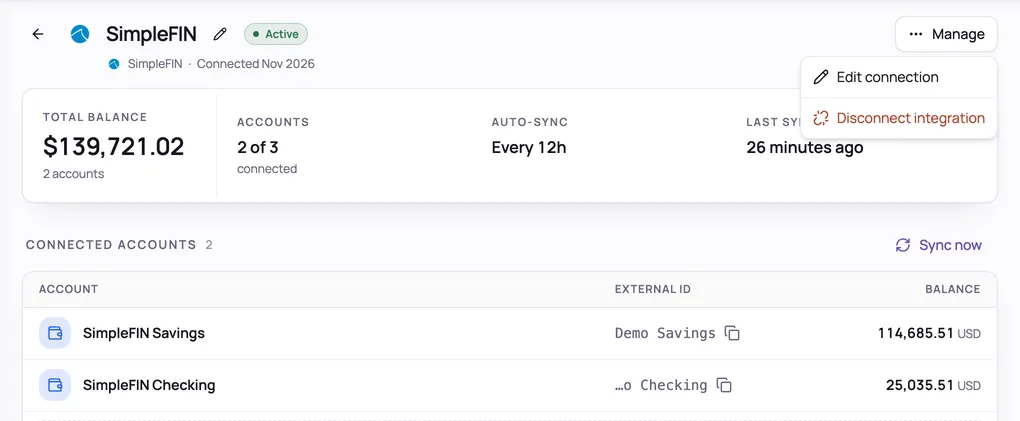
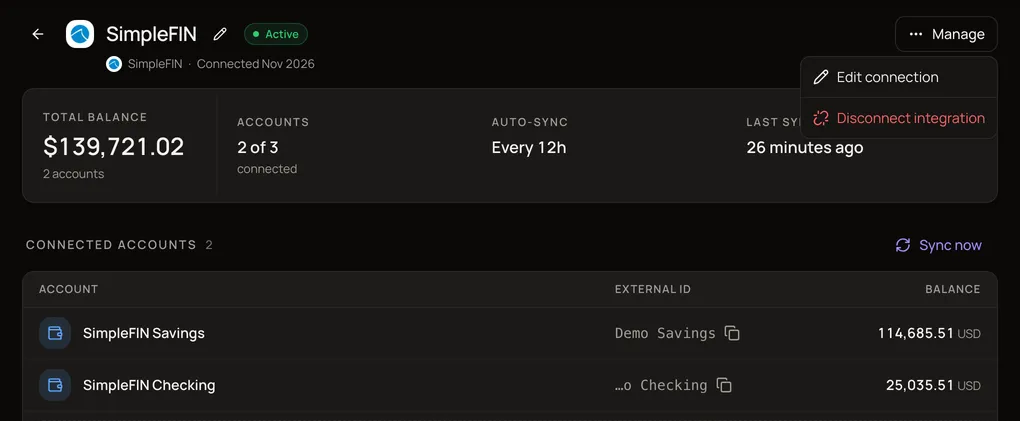
If you already track an account by hand, you don’t have to start over. Connect the bank without that account, then open the account and link it from its Data Connection tab. Your history stays, and syncing continues from there.
Choose when it syncs
MoneyMatter syncs your connected accounts twice a day, at two hours you pick in Settings → General. Set one for early morning, and yesterday’s spending is there when you check your budget. Opening the app can also start a sync, and the cloud button in the header lets you sync right away.
Let payees handle the shops you visit every week
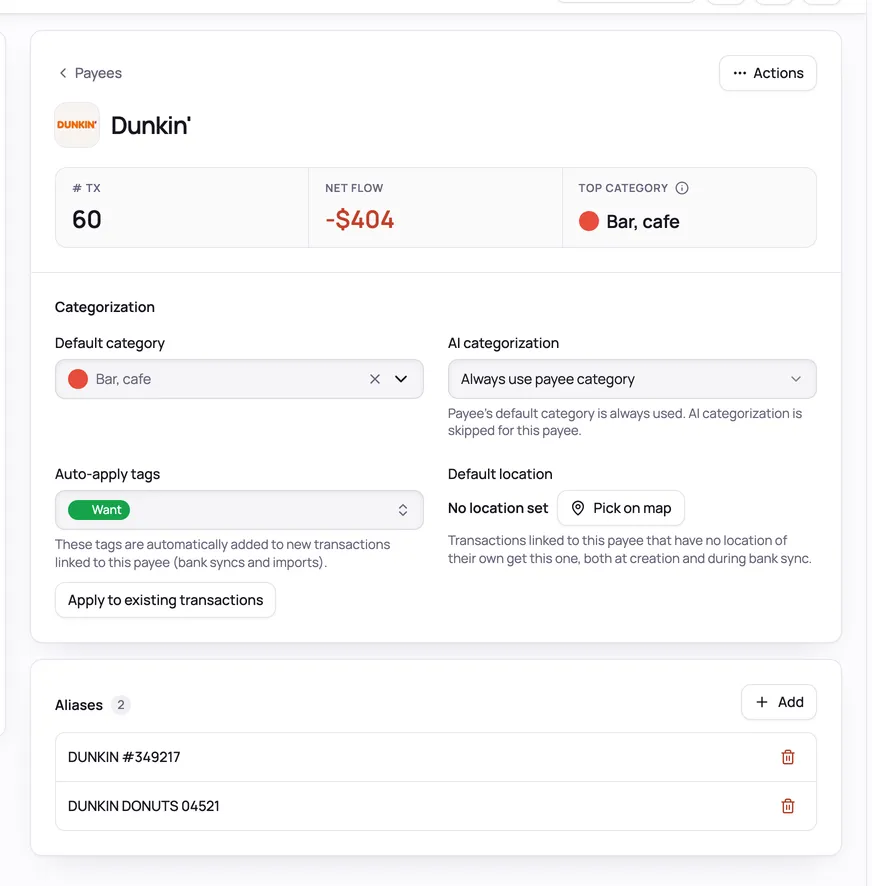
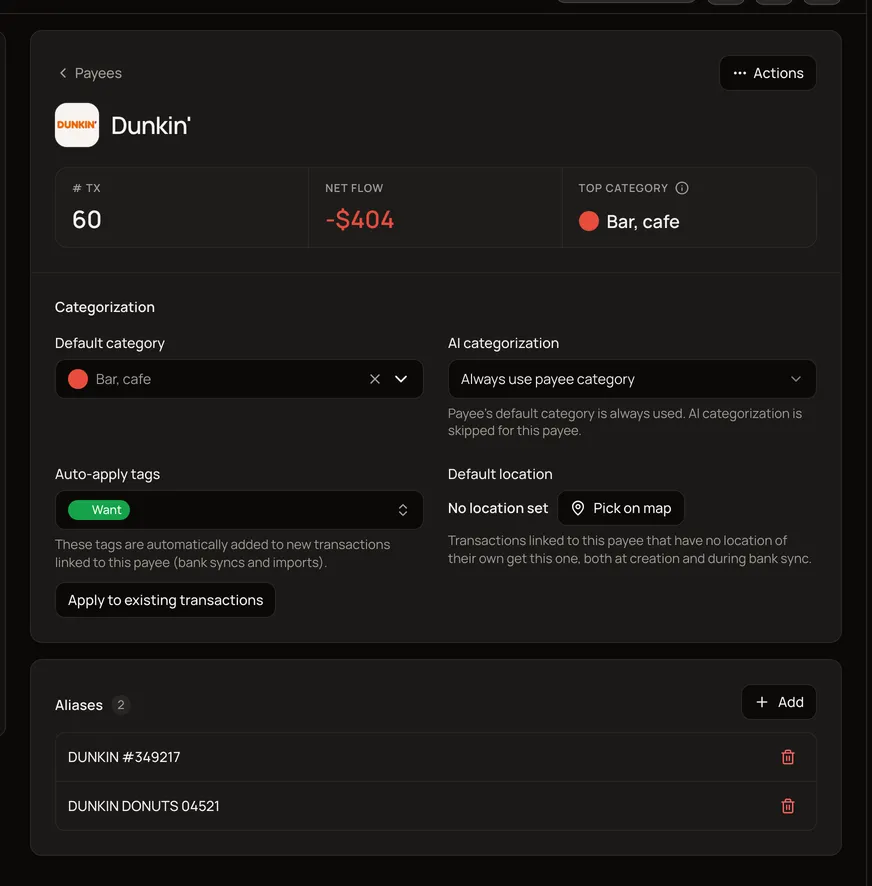
MoneyMatter reads the merchant name on each synced transaction and links it to a payee. By default, once two transactions share a new name, it creates the payee for you. Close spellings such as “LIDL 1234” and “LIDL SAGT DANKE” are saved as aliases of the same payee.
Give a payee a Default category once, and every new transaction from it gets that category. Its AI categorization setting decides how strict that is:
- Always use payee category suits a shop where you always buy the same kind of thing, like your supermarket.
- Use as a hint suits a shop that sells everything, like a big online store. The payee’s category goes in first, and AI can replace it based on the transaction’s details.
A payee can also add tags to its transactions, such as a Household tag for your shared groceries.
Write rules for what you can describe exactly
Payees work by merchant. A rule works on anything you can describe: the merchant text, the amount, the account or the day of the month. For example:
- Merchant text contains “uber” or “bolt”: set the category to Transport.
- Amount is exactly 1,200 and the day is 1 to 5: set the category to Rent and the payee to your landlord.
- Account is your shared card: add the tag Household.
To create one, open Transactions → Automations in the sidebar. A rule can set the category, tags, payee or note, and it runs on every new transaction from bank sync and from file imports. Rules are included on every plan.
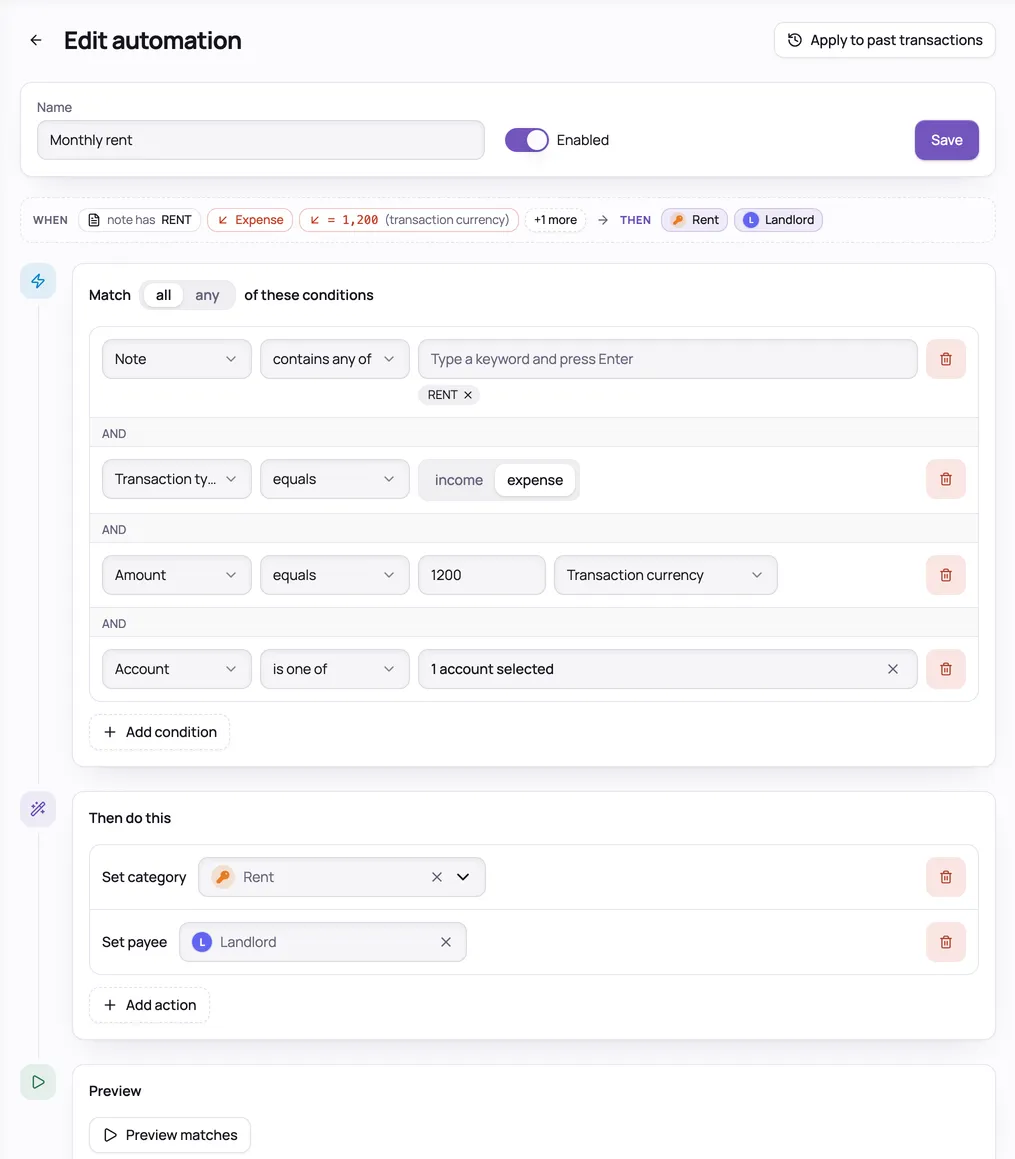
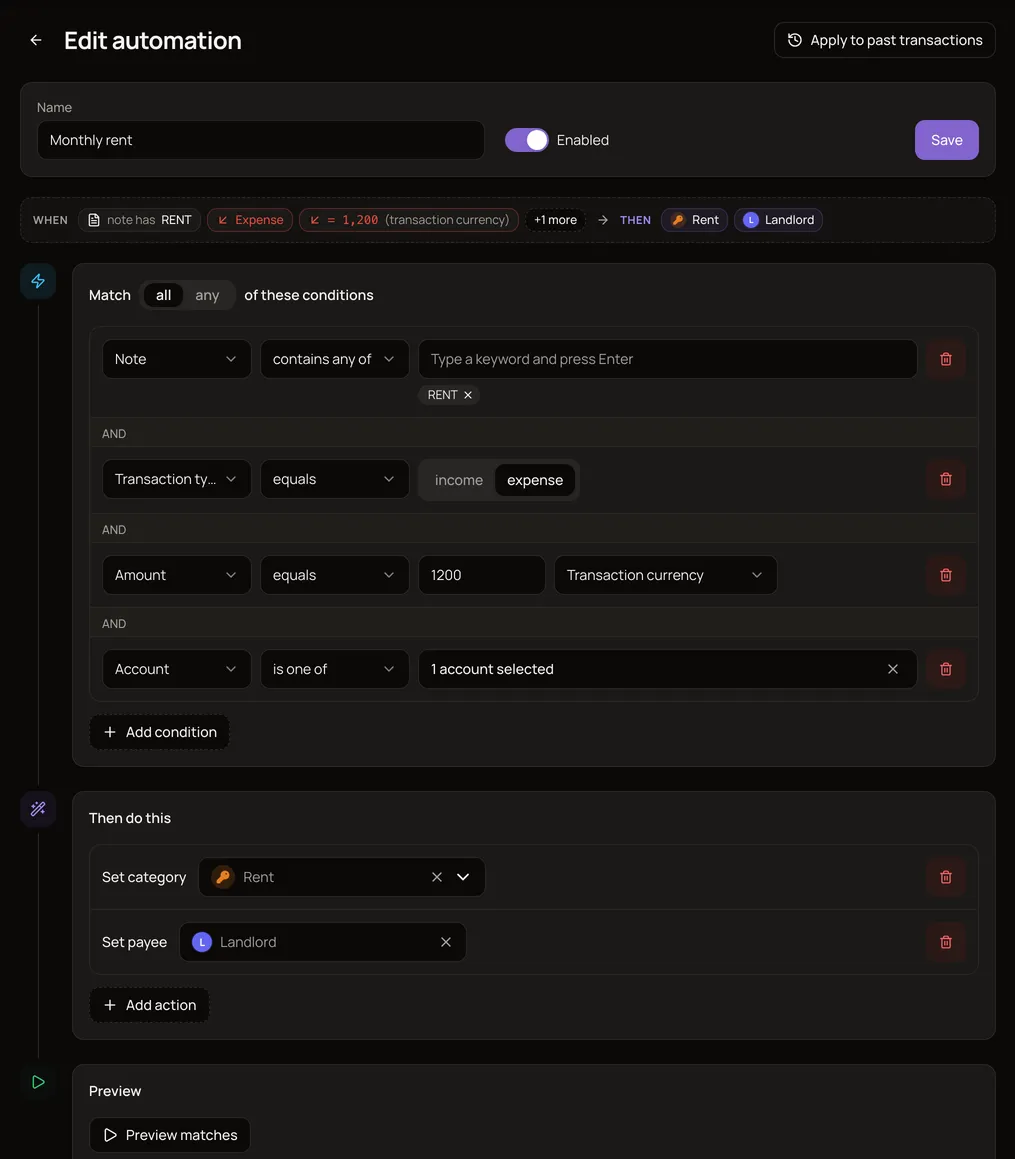
A new rule doesn’t change your past transactions by itself. To clean those up, apply the saved rule, tick the matches you want in the review list and confirm.
Let AI categorize everything else
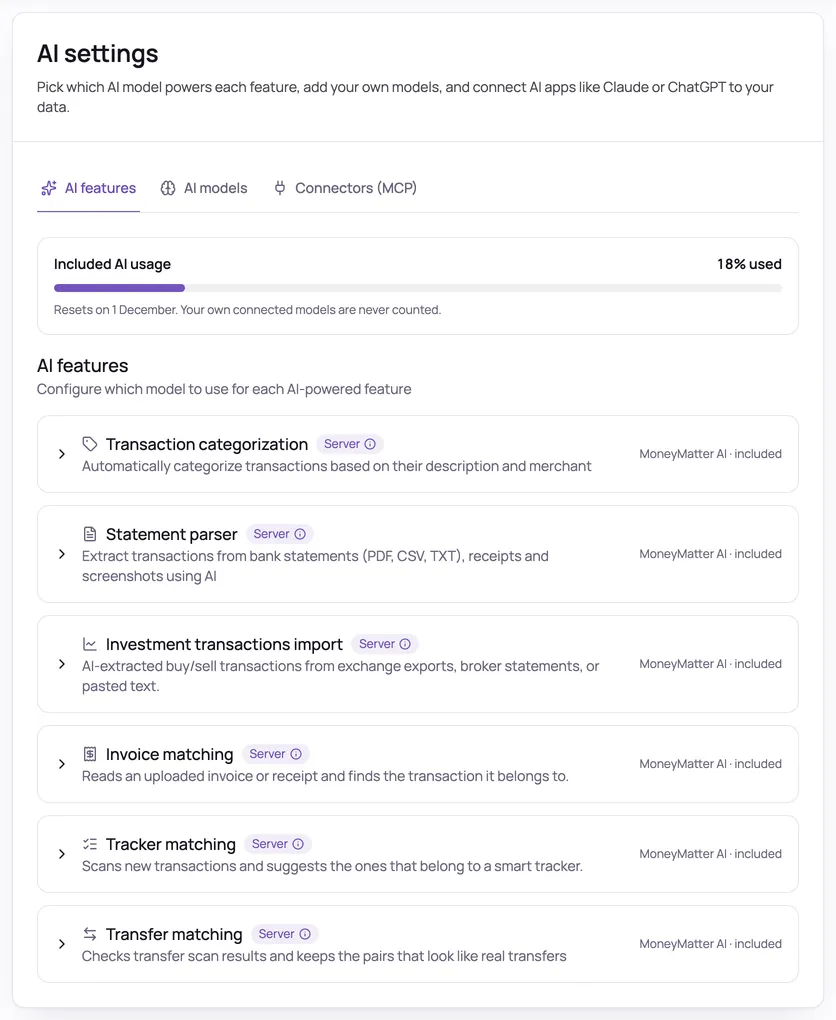
New transactions that come out of bank sync without a category go to AI a few seconds after they arrive. It picks from your own category list, so the result fits the way you already budget.
AI sees the amount, currency, date, account name, note and payee of each transaction, plus your category names. Your balances aren’t sent. It never overwrites a category you set by hand or one a rule set.
AI doesn’t learn from your corrections. When you fix the same mistake twice, set a default category on that payee or write a rule, and the mistake stops for good.
Plus includes MoneyMatter’s AI with a monthly allowance, and so does the trial. On Essential, AI categorization runs on your own OpenAI, Anthropic or Gemini key.
Which one wins
When more than one layer could set a category, MoneyMatter uses this order:
- A matched subscription sets the category first.
- A rule comes next, and beats a payee’s default category.
- AI categorizes whatever is still left.
Put your most specific knowledge into rules and payees, and leave AI the long tail.
Transfers between your accounts aren’t spending
When you move money from your current account to your savings, both sides arrive from your bank. If they counted as spending and income, both totals would look bigger than they are.
MoneyMatter links them for you. When a synced transaction has exactly one match on another connected account, with the same amount and currency in the opposite direction within 3 days, the pair becomes a transfer and drops out of your spending stats. An exchange between two currencies usually needs your help: open the transaction, select the Transfer tab and link the other side yourself.
Review your week in five minutes
Automatic doesn’t mean you never look. Once a week, open Transactions and scan the new ones:
- Fix anything that landed in the wrong category.
- Look at what’s still in your default category, usually Other.
- When you make the same fix a second time, turn it into a payee default or a rule.
Each fix you turn into a rule is one you never make again, so the list gets shorter every week.
If your bank isn’t supported
You can still skip the typing. Import a CSV, OFX or QFX file from your bank, or upload a PDF statement and let AI pull the transactions out. Payees and rules work on imported transactions too. Transactions from a PDF statement also go to AI categorization, and for a CSV file you can run it yourself from Transactions → Optimizations. On Essential, which has no bank sync, this is how rules get their transactions.