
 Українська
 Español
 Italiano
 Deutsch
 Français
 Português (Brasil)
In the UK and the EU, banks have to let you share your account data with apps you choose. That’s open banking. You approve the access on your bank’s own website or app, the access is read-only, and it runs out after a set time unless you renew it.
For a budgeting app, this means your transactions arrive by themselves, without CSV exports or typing. This guide shows how to set it up in MoneyMatter and what to expect after.
What open banking gives an app, and what it doesn’t
- It can read your accounts, balances and transactions.
- It can’t move money. MoneyMatter’s bank connections are read-only.
- It never sees your bank password. You log in at your bank, and MoneyMatter keeps only the access tokens and keys, encrypted with AES-256-GCM.
Two ways to connect from the UK and EU
Bank sync is part of the Plus plan, and the 40-day free trial includes it, with no card needed. In the UK and the EU you can connect through two providers.
Lunch Flow is the easy route. It covers 20,000+ banks in the UK, the EU and beyond. You open a Lunch Flow account, link your banks there and paste its API key into MoneyMatter. Lunch Flow charges for its own service, separately from your MoneyMatter plan.
Enable Banking covers 6,000+ banks in the EU and the UK and costs nothing extra. The catch is the setup: you register your own developer application with Enable Banking and give MoneyMatter its Application ID and private key. It’s in beta, and it suits people who are comfortable with technical setup.
In Poland, MoneyMatter can also connect directly to your Walutomat currency wallets, at no extra cost.
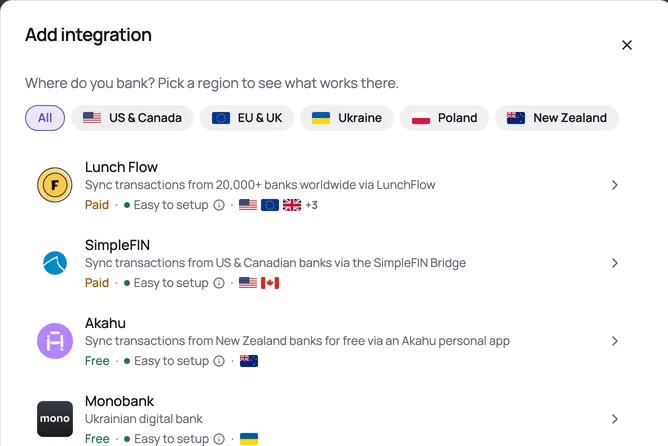
Connect your bank
- In the sidebar, open Accounts → All Accounts.
- In the Bank connections section, click Connect bank.
- Pick the EU & UK region and choose your provider.
- With Lunch Flow, paste your API key and click Connect. With Enable Banking, enter your Application ID and private key, choose your country and bank, and approve access at your bank.
- Choose the accounts you want.
With Enable Banking, finish in the same browser you started in, because MoneyMatter remembers the pending connection there.
Already tracking an account by hand? Connect the bank without that account, then open the account and link it from its Data Connection tab. Your history stays, and syncing continues from there.
How much history you get
With Enable Banking, the first sync loads as much as your bank allows, from 90 days up to about 3 years depending on the bank. With Lunch Flow, you get whatever Lunch Flow has for the account. After that, each sync picks up from your newest transaction.
Pending card payments
Some banks report a card payment as pending before it’s booked. With Enable Banking, MoneyMatter skips pending payments unless you turn on Import pending bank transactions in Settings → General. When the bank books a payment, the pending copy is merged into it, so it doesn’t show up twice.
Renew access before it runs out
Open banking access lasts a limited time. With Enable Banking, MoneyMatter asks for the longest period your bank allows, or 90 days if the bank doesn’t say. The connection’s page shows how many days of consent are left.
When 7 days or fewer remain, the connection shows Expiring soon. Once it expires, it shows Expired and stops syncing. To renew, open the connection’s page, click Reconnect Now and approve access at your bank again. Your accounts keep syncing into the same MoneyMatter accounts, with their history intact.
Accounts in several currencies
Many people in Europe hold accounts in more than one currency, such as a euro current account and a pound or dollar account. MoneyMatter keeps each account in its own currency and shows your totals in your base currency.
When you move money between two of your connected accounts in the same currency, both sides arrive from your banks. MoneyMatter links them as a transfer when it finds exactly one match with the same amount in the opposite direction within 3 days, so the move doesn’t count as spending. An exchange between two currencies usually needs your help: open the transaction, select the Transfer tab and link the other side yourself.